For a Partial Refund:
Tap the Blue Hamburger Menu button in the bottom right of the screen.

Tap the Search Closed Checks option on the top menu bar.

Search for the check using the text box or predefined buttons.
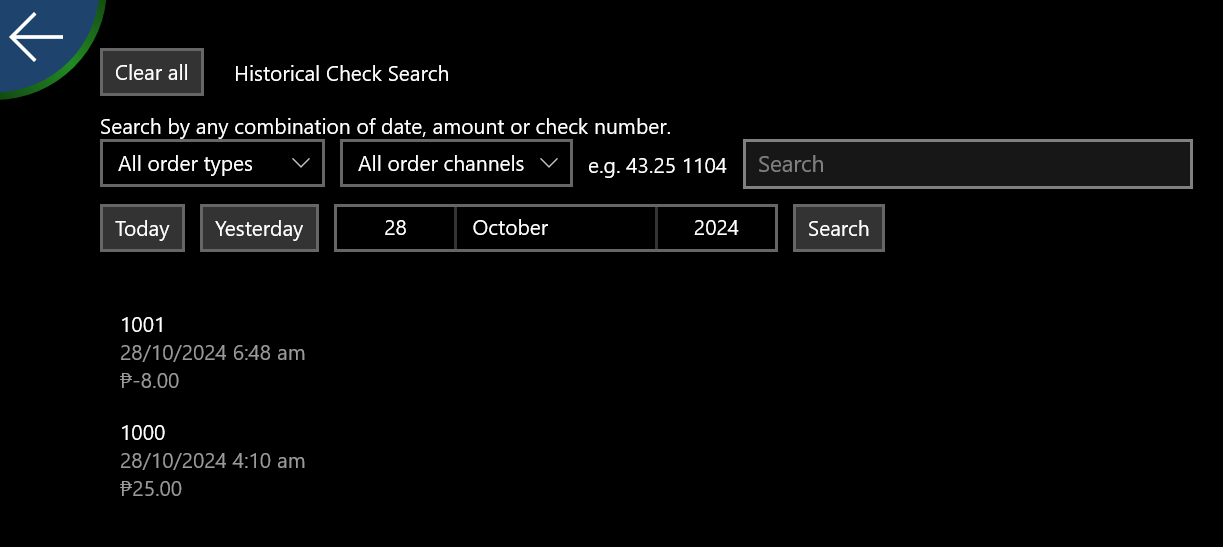
Tap the check you want to refund, and tap Reopen.
After reopening the check, swipe right on the items that need to be returned and select a Return Reason from the prompt.
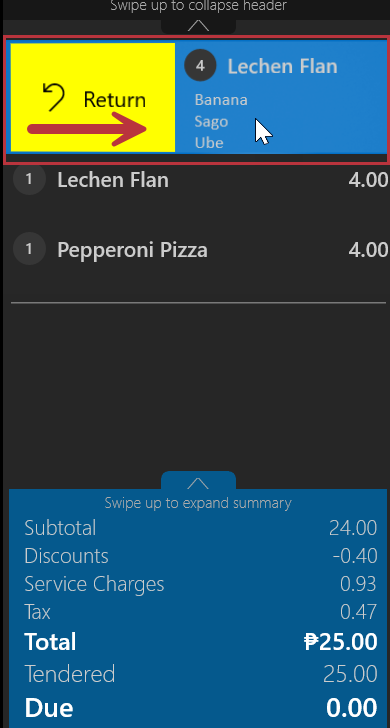

The returned items are marked "yellow."
- Go to the payment screen to complete the refund.
- If Credit, tap Return Difference; the check will close, and the customer will receive a refund in their account.
- If Cash, add a new payment type and select the Cash option. Then, tap the Apply Refund button.
- The cash drawer will pop, allowing the cashier to refund the customer.
For a Full Refund:
- Tap the Blue Hamburger Menu button in the bottom right of the screen.
- Tap the Search Closed Checks option on the top menu bar.
- Search for the check using the text box or predefined buttons.
- Perform the following:
- Tap the check you want to refund.
- Tap theFull Refund button.
Tap the Continue button.
- Select a Refund Reason from the list.
5. Tap OK.
Was this article helpful?
That’s Great!
Thank you for your feedback
Sorry! We couldn't be helpful
Thank you for your feedback
Feedback sent
We appreciate your effort and will try to fix the article