Training Mode is a Qu POS feature that allows users to perform order simulations without affecting production operations. This helps cashiers learn to use Qu POS without affecting reporting data. You can choose whether checks print or get sent to the kitchen and whether the cash drawer opens.
Note
All transactions made via Training Mode will NOT be included in any reports.
WARNING
Training Mode SHOULD NOT BE ENABLED on the terminal processing digital orders (web, Uber Eats, DoorDash, etc.). if it is enabled, the store will stop processing online transactions until Training Mode is turned off.
Turn On the Training Mode
- Log in as a Manager
- Tap the Blue Hamburger Menu button to display the top and bottom menus.

- Tap the More options located on the top menu.

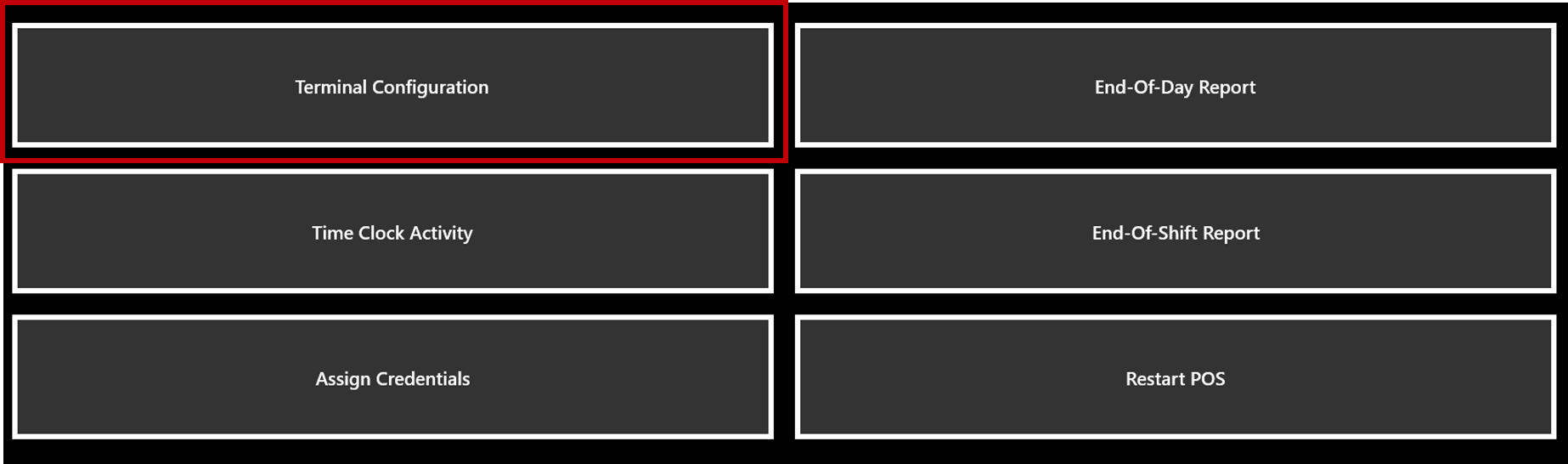
- Tap Terminal Configuration.
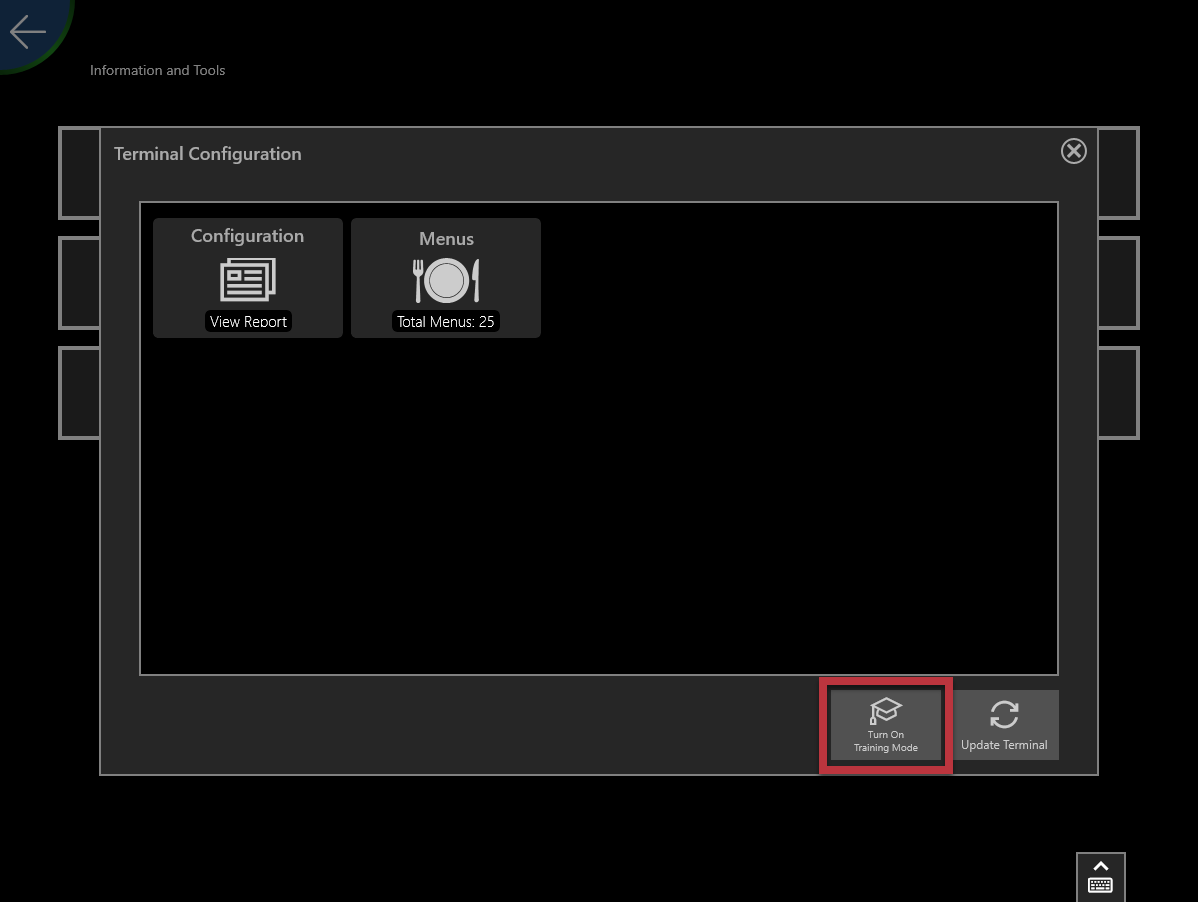
- Tap Turn On Training Mode.
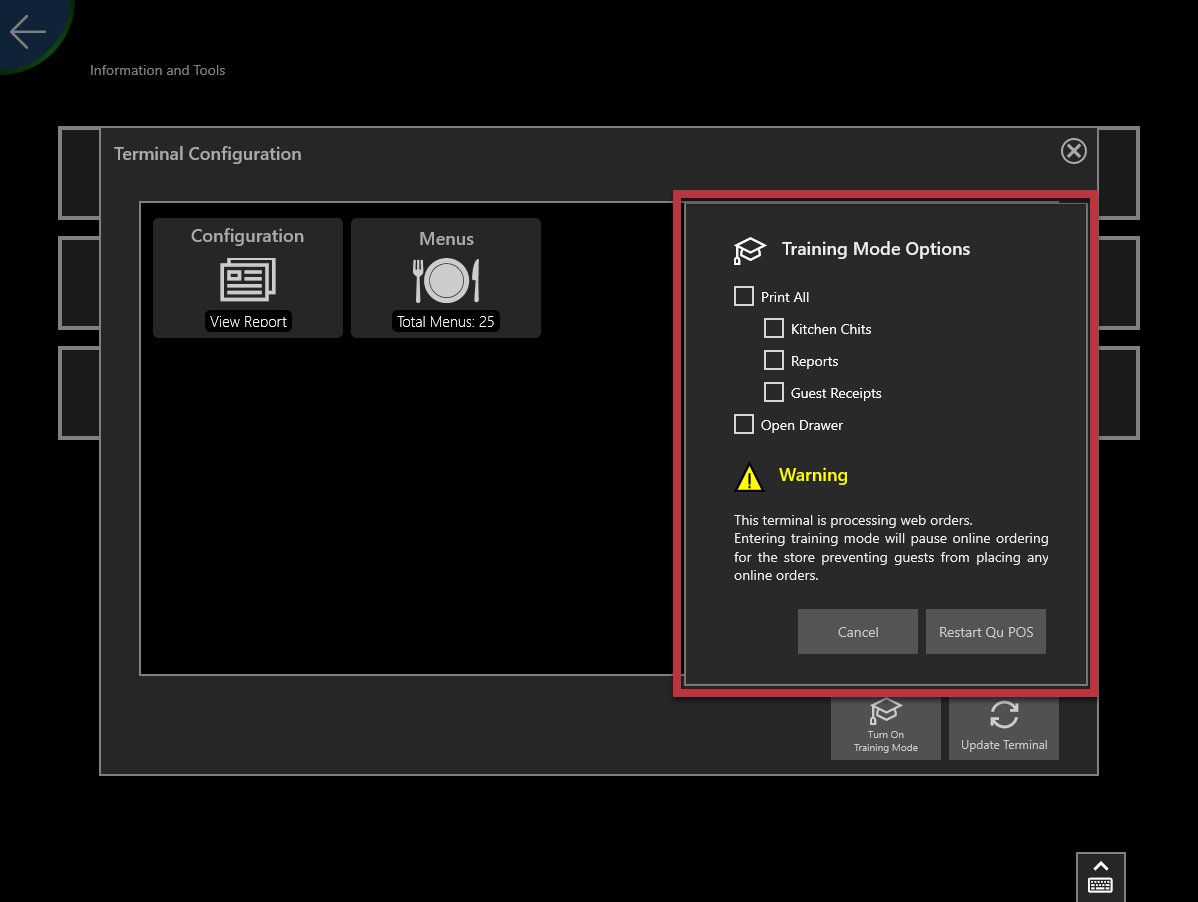
- Select the desired Training Mode Options:
- Print All, or
- Kitchen Chits
- Reports, and/or
- Guest Receipts
- Open Drawer
- Print All, or
- Tap Restart Qu POS to save the changes and restart the POS in training mode.
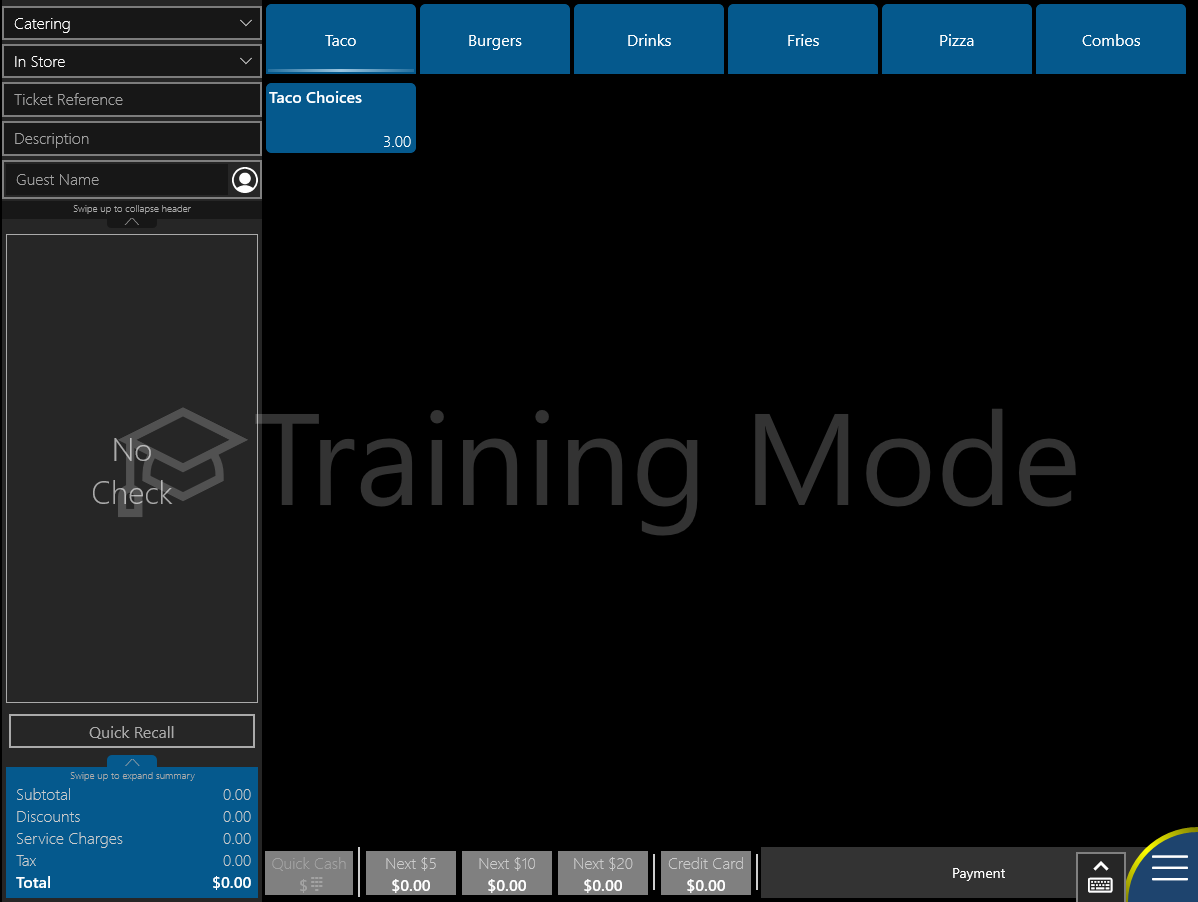
Once the terminal restarts, all screens will display a training mode watermark.
Turn Off Training Mode
- Log into the Qu POS application.
- Tap the Blue Hamburger Menu button to display the top and bottom menus.

- Tap on the More options located at the top menu.

- Tap Terminal Configuration.
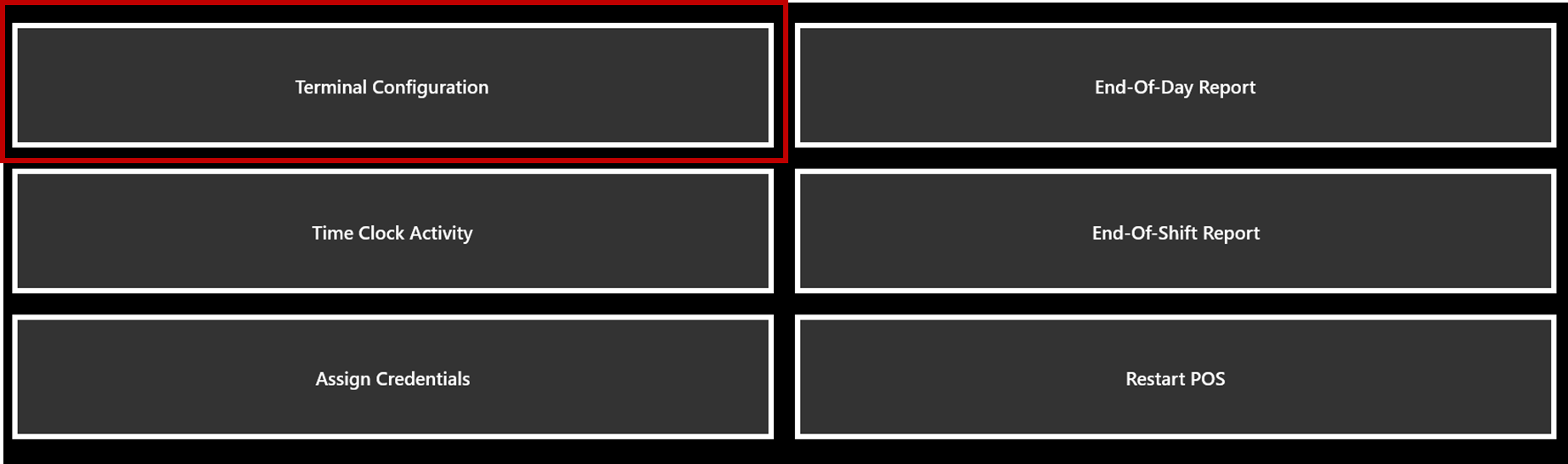
- Tap Turn Off Training Mode.
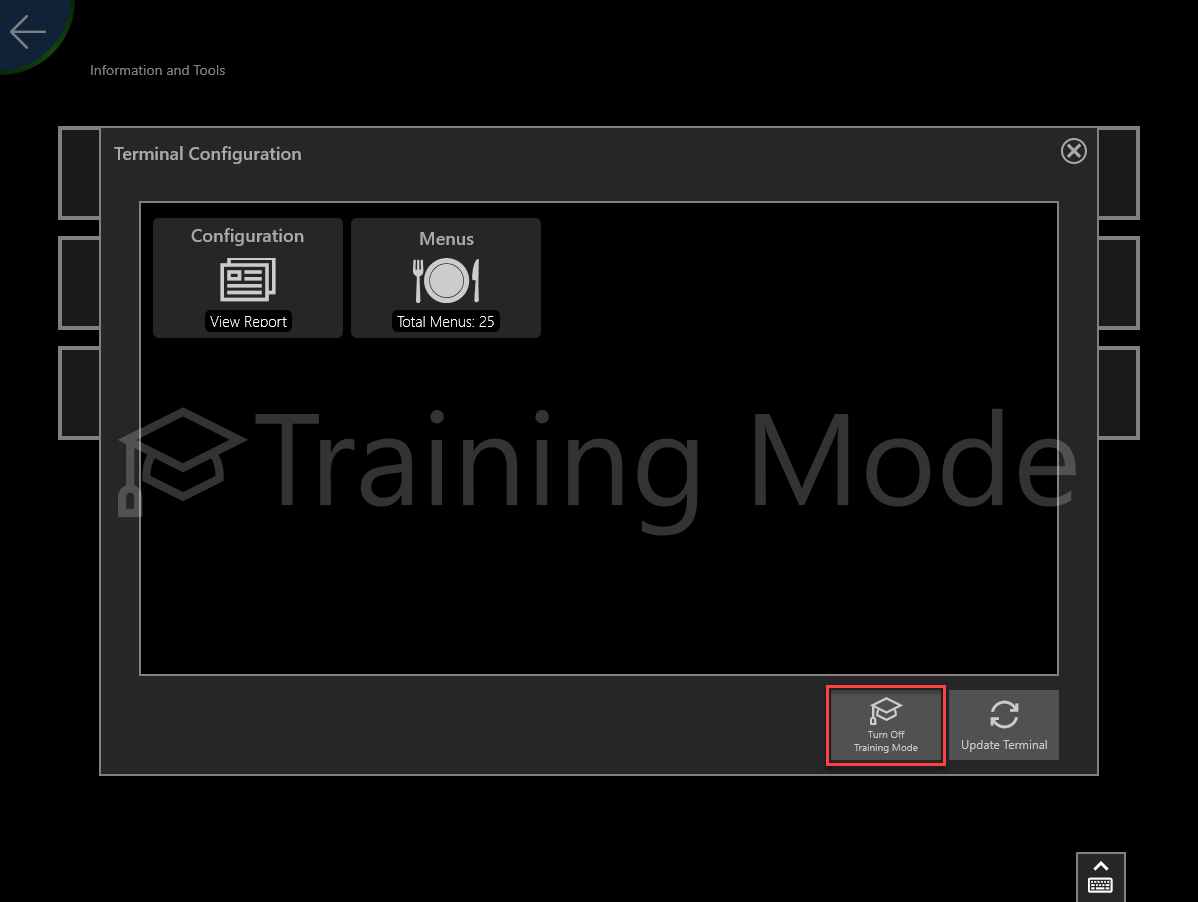
- The terminal will restart into production mode.
Was this article helpful?
That’s Great!
Thank you for your feedback
Sorry! We couldn't be helpful
Thank you for your feedback
Feedback sent
We appreciate your effort and will try to fix the article